Home Assistant
The WindNerd HQ (like the discontinued One and One-S) is a 3D-printable anemometer that measures wind speed/direction and connects to your home network. For Home Assistant users it integrates natively as an MQTT device, auto-discovered, publishing live wind data to your dashboard and enabling automations like closing shutters or sending alerts when wind speed exceeds a threshold.
On the Sunbank solar base, the HQ's Eco mode saves energy when necessary while still letting Home Assistant raise wind alerts without delay.
The WindNerd Node is an ESP32 wind sensor board that ships with ESPHome pre-installed for native integration with Home Assistant. Unlike the HQ, it cannot run on the Sunbank and requires a permanent USB power supply.
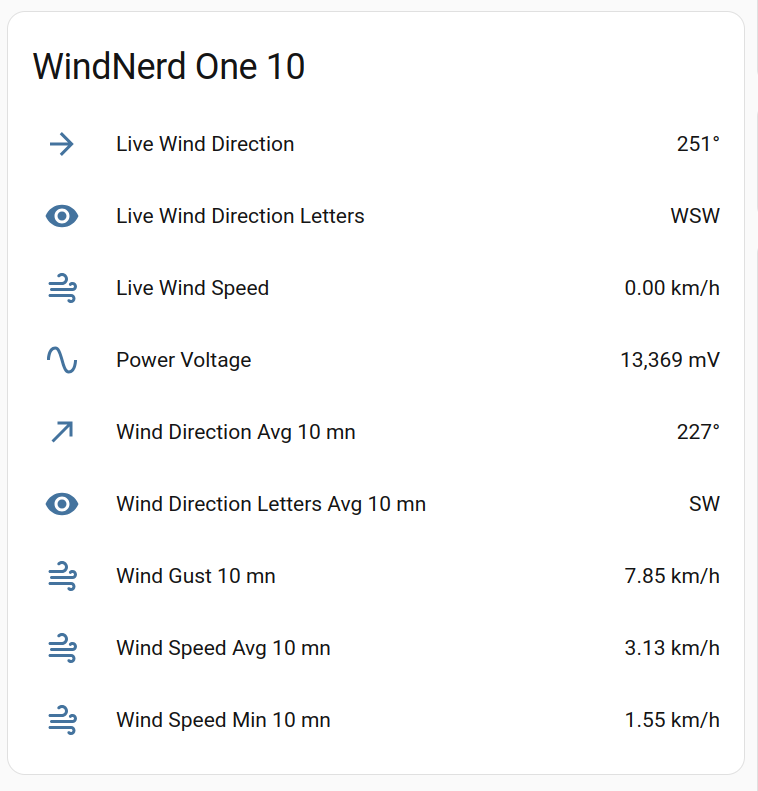
The figure above shows the entities that Home Assistant automatically creates through MQTT discovery. You can customize them within Home Assistant, for example, by changing their names, icons, units, or hiding those you don't want. This also includes editing the names of the underlying sensor entities, so you can make them more descriptive or easier to recognize in your system.
How to add your WindNerd HQ as an MQTT device
Install the MQTT add-on
To install the add-on, follow these steps:
-
In Home Assistant, go to Settings → Add-ons → Add-on Store.
-
Locate the Mosquitto broker add-on and select it.
-
Click Install to begin the installation.
-
Start the add-on.
Create a dedicated user
-
Create a new user dedicated for MQTT by going to Settings → People → Users in the Home Assistant frontend. Choose a username at your convenience. (Do not create the user in the Mosquitto add-on’s Configuration tab.)
-
Allow login and set a password.
-
Click Update to apply the changes.
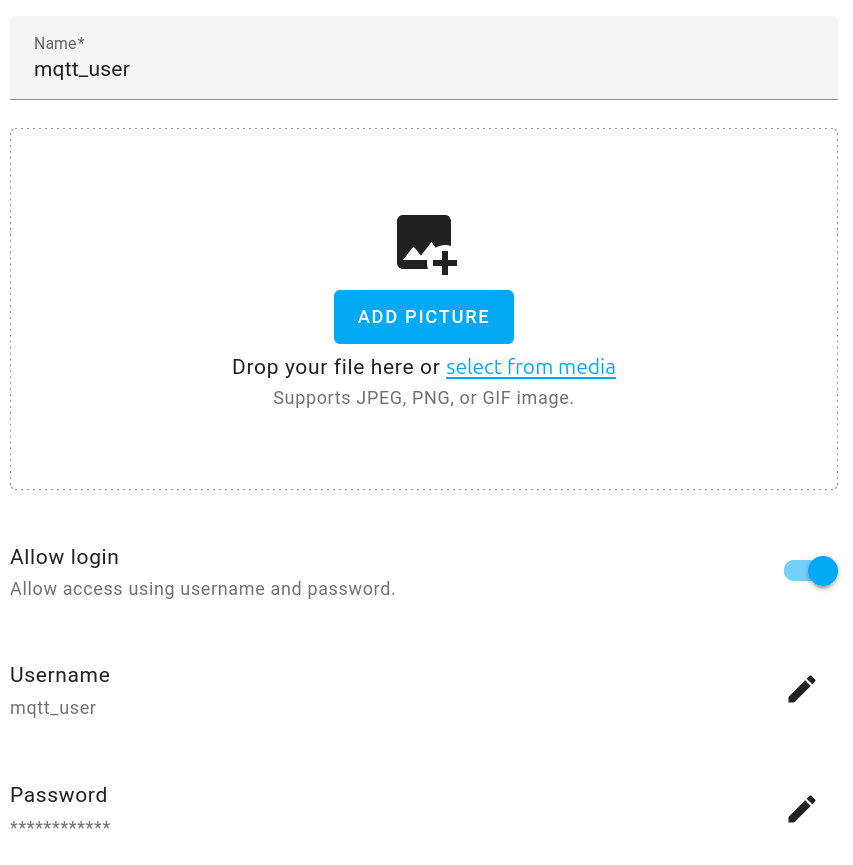
Configure the WindNerd device
- In the local dashboard, go to Remote Services → MQTT broker.
- Select Home Assistant as service
- Check the prefilled MQTT address matches your Home Assistant local address
- Enter the username and password you created in the previous step.
- Save.
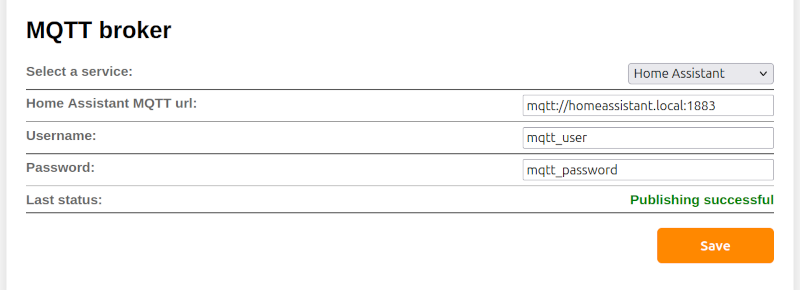
After a few seconds, the Last Status field will update. If connected successfully to Home Assistant, it should show Publishing Successful, then a device card should appear on your dashboard.
Entities
The following entities are created automatically:
| Entity | Description |
|---|---|
| Live Wind Speed, Live Wind Direction, Live Wind Direction Letters | Instant wind, updated every 3 seconds when the device is not in Eco mode. |
| Wind Speed Avg 10 mn, Wind Gust 10 mn, Wind Speed Min 10 mn | Average, maximum and minimum speed over the last 10 minutes. |
| Wind Direction Avg 10 mn, Wind Direction Letters Avg 10 mn | Average direction over the last 10 minutes. |
| Power Voltage | Supply voltage, in mV. |
| Eco Mode (HQ and One-S only) | Selector to override the Eco mode: Auto, Always Eco or Never Eco. |
| Eco Interval (HQ and One-S only) | Minutes between Eco cycles, 0 when the device is not in Eco mode. |
Eco mode control (HQ and One-S)
The Eco Mode entity lets you override the automatic energy management from your dashboard. For example:
- Set it to Never Eco temporarily to force the device out of Eco mode, so you can reach the local dashboard.
- If the board is powered from a USB solar power bank that regulates the voltage, automatic energy management cannot work. You can instead switch Eco mode on or off yourself depending on the season.
Troubleshooting
-
Connection failed
The device could not reach the MQTT broker. This may happen if the broker is not accessible on the network, the hostname/IP is incorrect, or the MQTT broker add-on is not running. -
Authentication failed
The device successfully connected to the broker, but authentication was rejected. Verify that the MQTT username and password are correct, and that the user has the right permissions. -
Publishing successful, but nothing appears in Home Assistant
If messages are being published but entities do not show up, check Settings → System → Logs in Home Assistant. A failed MQTT discovery attempt should generate an error message there.