Station Management
Management Console
Stations are managed from the management console.
Linking your device to an email account allows you to:
- Manage multiple devices from one account
- Archive locations and preserve wind data
- Transfer a location from one device to another
First Connection
The first time you connect to windnerd.net, your device is not yet linked to an account. How you make the first connection depends on the device:
WindNerd OnSpot
From the console's sign-in screen, choose Activate a station and enter the 7-character activation code that comes with your device, then either create a new account or sign in to an existing one. The device is linked to that account.
WindNerd HQ, One and One-S
Scan the QR code included with your kit, or use the authentication link shown on the local dashboard. Use the Link device button to attach it to an email account: sign up or sign in from the dialog and the station list reloads under your account, unlocking archiving and transfers.
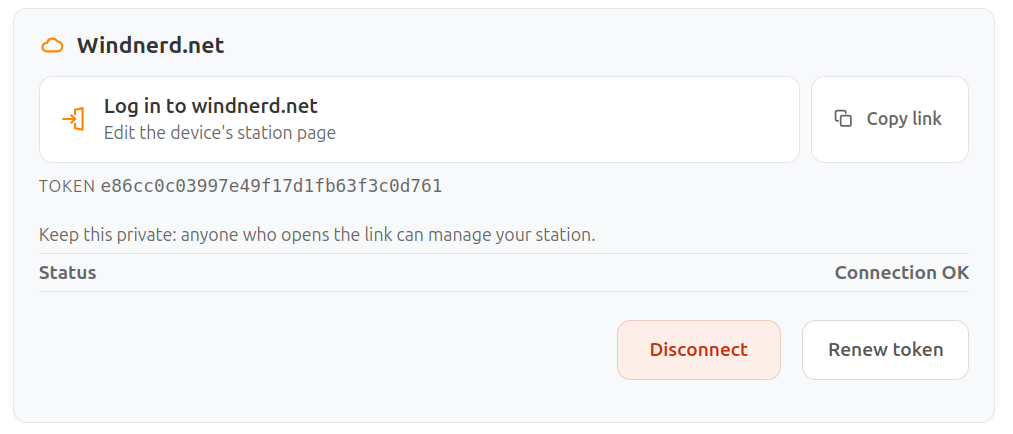
Anyone with physical access to the device can manage the associated windnerd.net station.
Signing In
Once your device is linked, sign in with your account's email and password. If you forget it, Forgot password sends a reset link to your email; opening the link brings you back to the console with a new-password form.
Your Stations
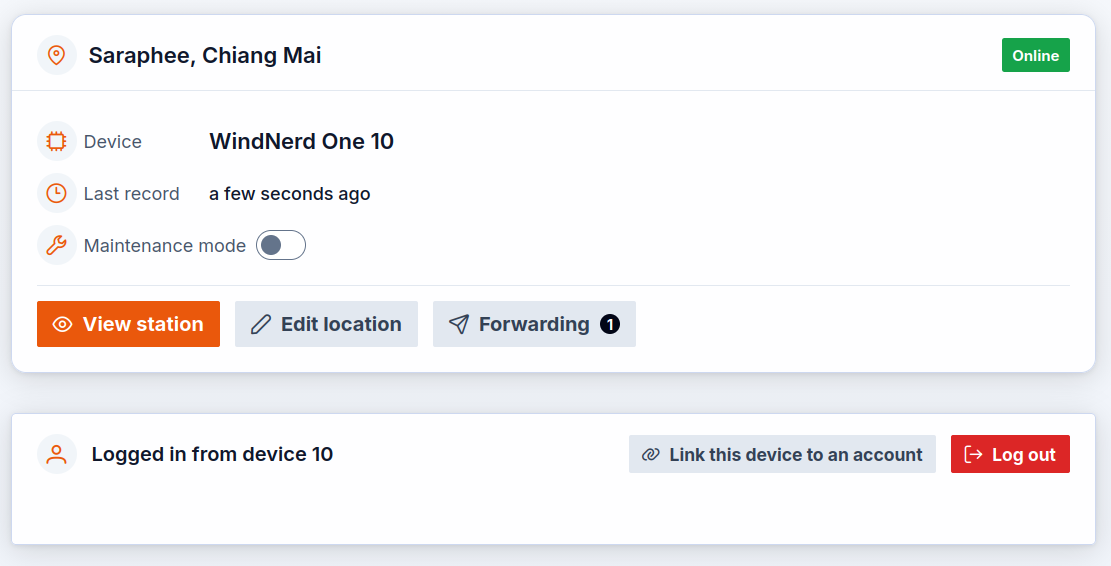
Each station appears as a card in the list:
- Location name and an Online / Offline tag. A station counts as online when it has recorded data within the last 20 minutes (online cards are marked with a green edge). A station in maintenance also shows an amber Under maintenance tag.
- Device: the device model and ID behind this location.
- Last record: how long ago the last data arrived ("never" if the station has not reported yet).
- Maintenance mode: a switch to put the station in or out of maintenance. New stations start in maintenance.
Card actions:
| Button | Description |
|---|---|
| View Station | Opens the private view of the station. |
| Edit Location | Opens the Edit Location form in a dialog. |
| Wind Forwarding | Opens the wind forwarding form in a dialog to push your station's data to third-party services. The button shows a badge with the number of destinations currently configured for the station. See Wind Forwarding. |
| Restore an archived location on this device (email accounts only) | Shown next to the Device line. Opens the Archived Locations dialog to restore or delete a location you previously archived. |
| Renew key (WTP devices only) | The card also shows the device's WTP key used to authenticate data uploads. Renewing generates a new key and invalidates the old one. Confirm in the dialog, then update the key on the device. |
Maintenance Mode
Every newly created station starts in maintenance mode — the first thing an owner sees after plugging in a device is a station already flagged, which they turn off once the install is finished.
While a station is in maintenance it still reports, streams live and appears in every list, but:
- its readings are flagged as not to be trusted — the public station page shows a notice that someone is currently working on the station, and the public station list marks it with a maintenance icon;
- the records it writes are deleted automatically once they are a day old.
Toggle it with the Maintenance mode switch on the station card.
Edit Location
Use the Edit Location form to customize how your station appears on WindNerd.net and control its visibility.
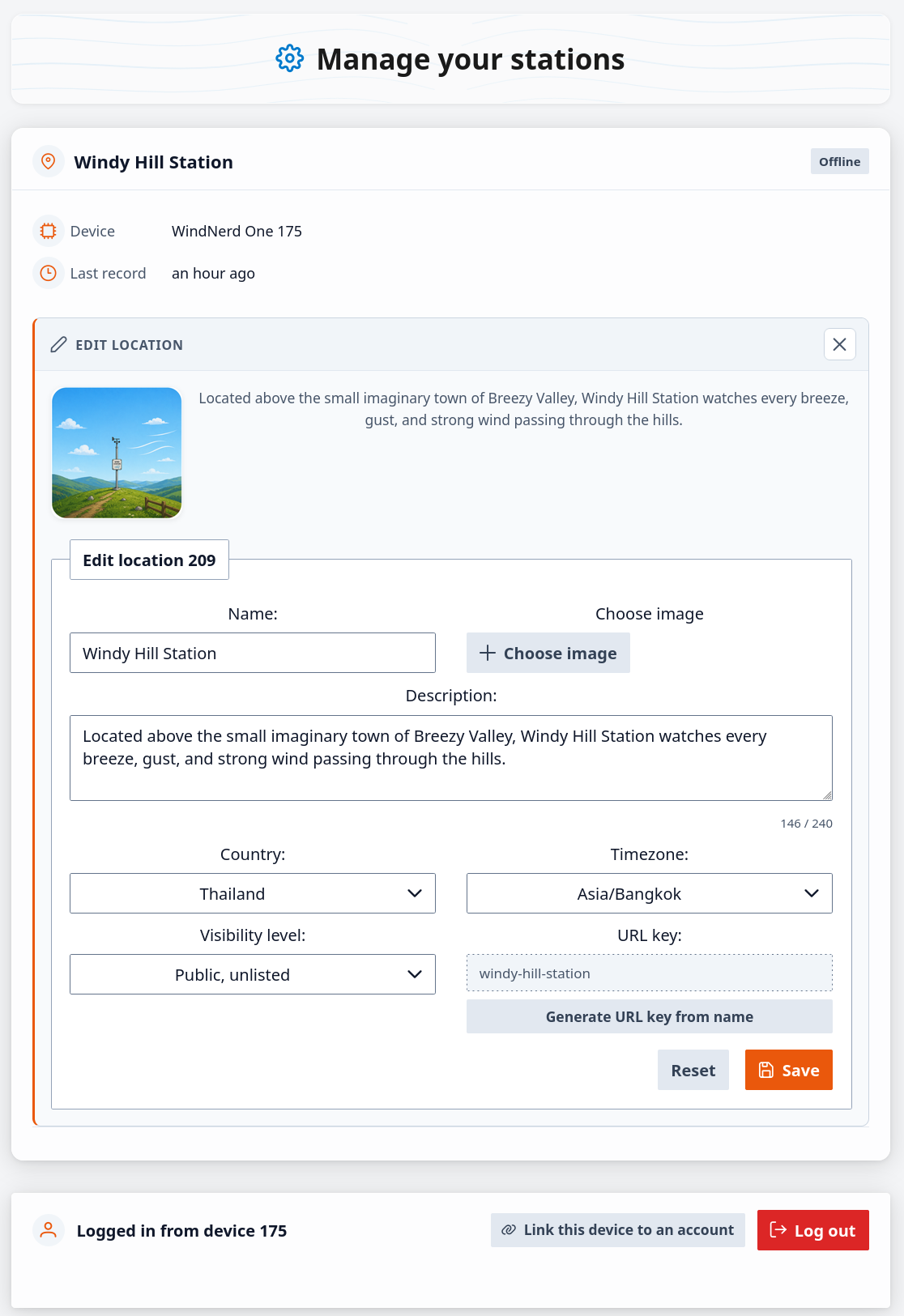
| Field Name | Type | Description |
|---|---|---|
| Location Name | Input | Name of the station location displayed on WindNerd.net. Helps identify the station in your account. |
| Location Image | Upload | Upload an image to represent the location. Accepted formats: image files only, maximum size 5 MB. The image is uploaded automatically after selection and is saved only when the form is saved. |
| Description | Text area | Short description of the location, up to 240 characters (a counter shows the remaining budget). |
| Country | Select | Country where the station is located. Used to organize station information and determine available timezones. |
| Timezone | Select | Timezone used for the station. Available options depend on the selected country (changing the country preselects its first timezone). Ensures wind data is displayed in the correct local time and can be correlated with daylight cycles. |
| Visibility | Select | Defines who can access the location: private, publicly accessible through a direct link (unlisted), or publicly accessible and listed on WindNerd.net. |
| URL key | Output | Key for the public URL when the station is publicly accessible. Only shown for public or unlisted stations; switching the station to private discards the URL key on save. |
| Generate URL key | Button | Generate a new valid URL key derived from the current name. The location name can be changed later without changing the URL, or a new URL can be generated at any time. |
| Location Type | Select | The kind of spot the station serves: residential, paragliding takeoff, paragliding landing, kiteboard, airstrip, point of interest, or marina. The matching icon is shown next to the station on WindNerd.net. |
| Favorable Wind Directions | Input | Available for spot types where the wind direction matters (takeoff, landing, kiteboard, airstrip, marina). Define up to 3 direction ranges (from → to, in degrees) that work for the spot; a compass preview updates as you type. These ranges power the green/red direction indicators shown on the public station page. |
| Archive Location | Button | Archives the current location while preserving its data, and assigns a fresh, empty location to the device. Asks for confirmation. Available only when the device is linked to an email account. |
| Close | Button | Closes the edit dialog. Unsaved changes are not applied. |
| Reset | Button | Restores the form to its original values. Any unsaved changes are discarded. |
| Save | Button | Applies and saves all updated station settings. |
Archived Locations
When the device is linked to an email account, each station card shows a Restore an archived location on this device button next to the Device line. It opens a dialog listing your archived locations (name and ID), with two actions:
| Button | Description |
|---|---|
| Restore | Assigns the archived location, with all its wind history, to this device. Asks for confirmation. |
| Delete | Permanently deletes the archived location and its data. Asks for confirmation. |
Transferring a location between devices is the combination of the two mechanisms: Archive the location from its current device (from the Edit Location form), then open the target device's Archived Locations dialog and Restore it there. The wind history follows the location, so the record continues seamlessly on the new hardware.
Station Private View
The private view is the same page visitors see (live wind, 10-minute and 1-hour summaries, today's chart and the full history graph) plus owner-only information and tools.
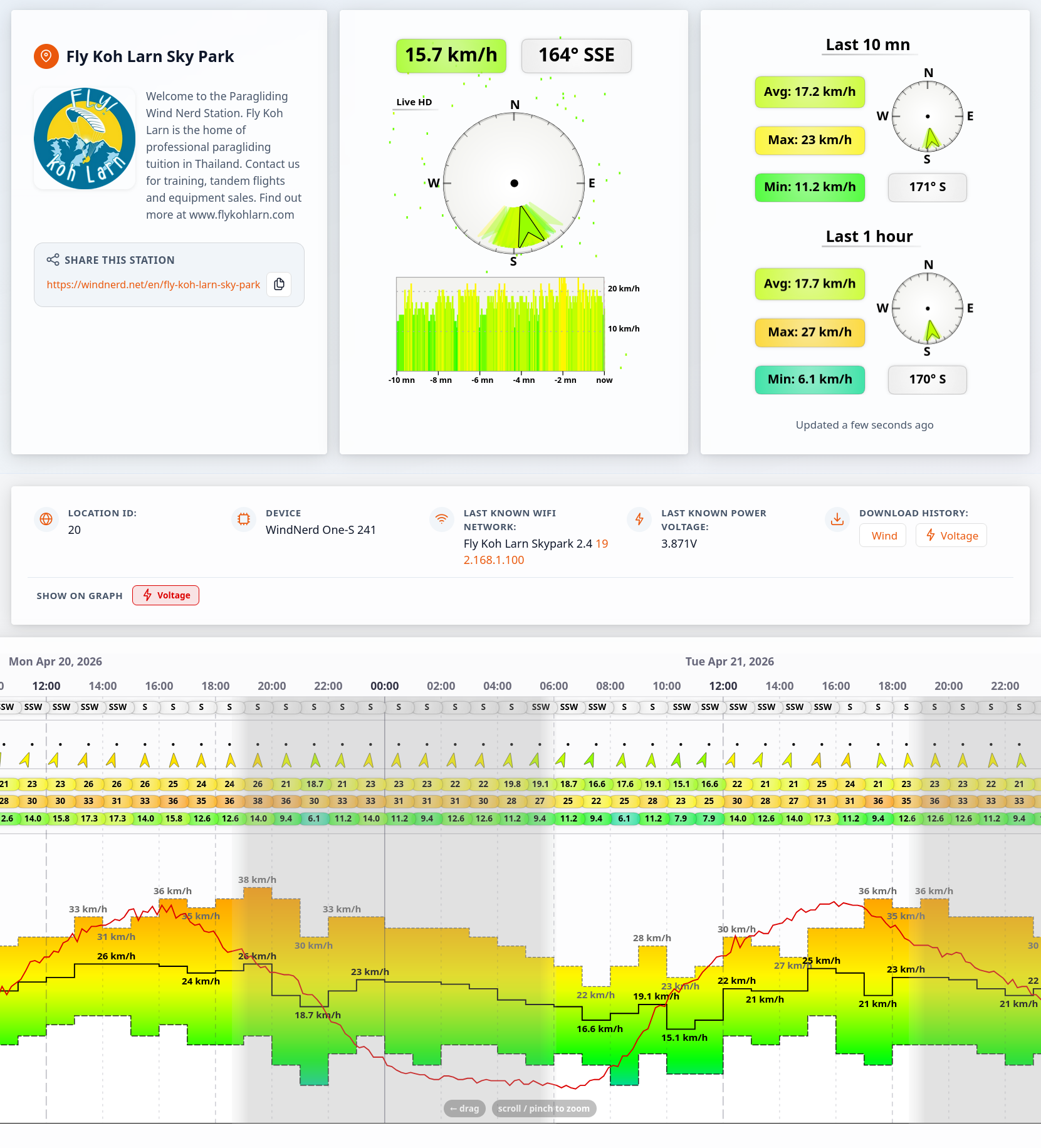
Device panel (titled Device):
- The device model, ID and type. The Location ID is shown in the location card, under the description.
- Last connected to (WiFi devices): the WiFi network (SSID) the device
last used, with links to its local IP and
wnXXXX.localaddress to open the device's own interface from your home network. - Power voltage (WiFi devices): the current supply/battery voltage.
- Download device history: download the device-metrics archive. The station's atmospheric history (wind and weather records) is downloaded from the Atmo history tab of the history graph below.
Graph overlays: toggle extra device metrics as overlay lines on the history graph below: Voltage, Internal temperature, and RSSI (radio signal strength). A toggle only appears when the device actually reports that metric, and each overlay line uses the same color as its button. These owner-only overlays help diagnose power problems (voltage sagging at night), overheating, or radio link quality, and correlate them with wind conditions.
History views: below the device panel the history graph offers several views as tabs — the scrolling Graph, the Wind rose and Daily pattern climatologies, and an owner-only Atmo history tab that downloads the station's full wind and weather record as a file.
Deleting Records
The private view of a station includes a Delete records tool that permanently removes a location's wind and weather records over a chosen period. If the station is linked to an email account, the tool is only available when you are signed in with that account — not when logged in from the device.
- Pick a From and a To date and time. Times are entered in the station's timezone. The selected span is previewed as a shaded band on the history graph so you can see exactly what will be removed.
- The range is limited to 92 days per request, and To must be after From.
Deletion is immediate and permanent — deleted records cannot be recovered.