WindNerd HQ
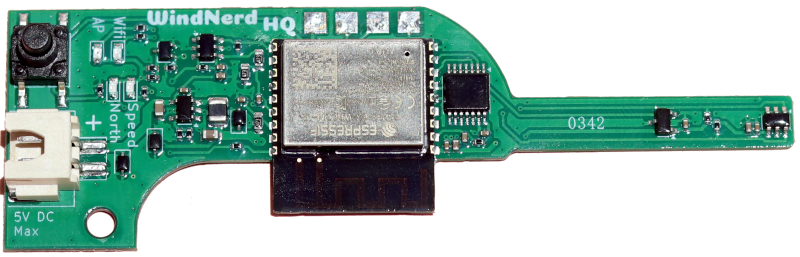
The WindNerd HQ is the Wi-Fi sensor board of the WindNerd anemometer. It measures wind speed and direction and uploads it over your home network to windnerd.net. It can also feed local integrations such as MQTT, a HTTP API, and third-party weather services.
Interfacing with Home Assistant is straightforward, using MQTT discovery.
It is powered either with:
- the Sunbank 2W solar base, for a fully wireless installation;
- a 4-meter power cable that plugs into any USB-A charger.
On the Sunbank, the HQ manages its own energy and switches to Eco mode when the sun is not enough to keep Wi-Fi connected all the time.
Indicators and Controls
Wi-Fi Status
On the electronic board, there are 2 status LEDs related to Wi-Fi.
Blue LED (Station Mode)
- Flashing rapidly: Attempting to connect to a Wi-Fi network (unsuccessfully)
- Flashing slowly: Connected to a Wi-Fi network, but no Internet access or intentionally disconnected from windnerd.net
- Solid on: Connected to windnerd.net and/or a MQTT broker
- Short blink every 3 seconds: Eco mode active, Wi-Fi connects intermittently.
Yellow LED (AP Mode - for settings WiFi password)
- Solid on: Access Point mode is active, waiting for other devices to connect and open the captive portal
- Short blink every 3 seconds: The battery is too low to start Wi-Fi. The device keeps measuring and recording wind, and Wi-Fi starts again by itself once the battery has recovered. See Eco mode.
Both LEDs
- Flashing fast together after a factory reset hold: the settings and the recorded wind history are being erased. This takes a few seconds; both LEDs turn solid once done.
You can switch modes at any time by pressing the button for 3 seconds. If no Wi-Fi network has been saved, attempting to switch to Station Mode will have no effect.
Button
- Short press: Exit Eco mode for 3 minutes. This also works when Eco mode is set to Always Eco, but not while the battery is too low to start Wi-Fi. When the LEDs are set to turn off when idle, a press also turns them back on for 1 minute.
- Press for 3 seconds: Switch between Access Point (AP) mode and Station mode.
- Press for 4 seconds while powering up, release when both LEDs flash fast: Factory reset. Erases the settings, the saved Wi-Fi network and the wind history recorded on the device.
- Press for more than 10 seconds while powering up, release when both LEDs turn off after flashing fast: Roll back to the previous firmware version.
This should normally never be needed; please contact support if you encounter an issue requiring it.