WindNerd One Local Configuration
Access the local configuration webpage
Your WindNerd One has its own built-in webpage you can open in your browser from your local network. To use it, go http://wnxxx.local where xxx is your device's serial number.
Some operating systems or routers may block .local addresses. If that happens, you can access the page using the device’s local IP address instead. There are a few ways to find it:
-
After you initially connect the device to WiFi, the IP address is shown in the confirmation message. Keep in mind, this address might change over time.
-
If you’re logged into windnerd.net, the station management page shows the last known local IP. It might be outdated if the network changed.
-
You can also find the IP address on your internet router’s settings page. Look for a device named WindNerd-One-xx, its indicated IP should be always up to date.
Once you have the IP address, type it into the address bar of your browser (like Chrome or Safari) to open the WindNerd’s local settings page.

When the WindNerd One-S enters Eco mode due to a low battery level, the local configuration webpage is not accessible.
Wi-Fi connection and access to the configuration can be temporarily restored for 3 minutes by pressing the on-board switch for 1 second.
Station Tab
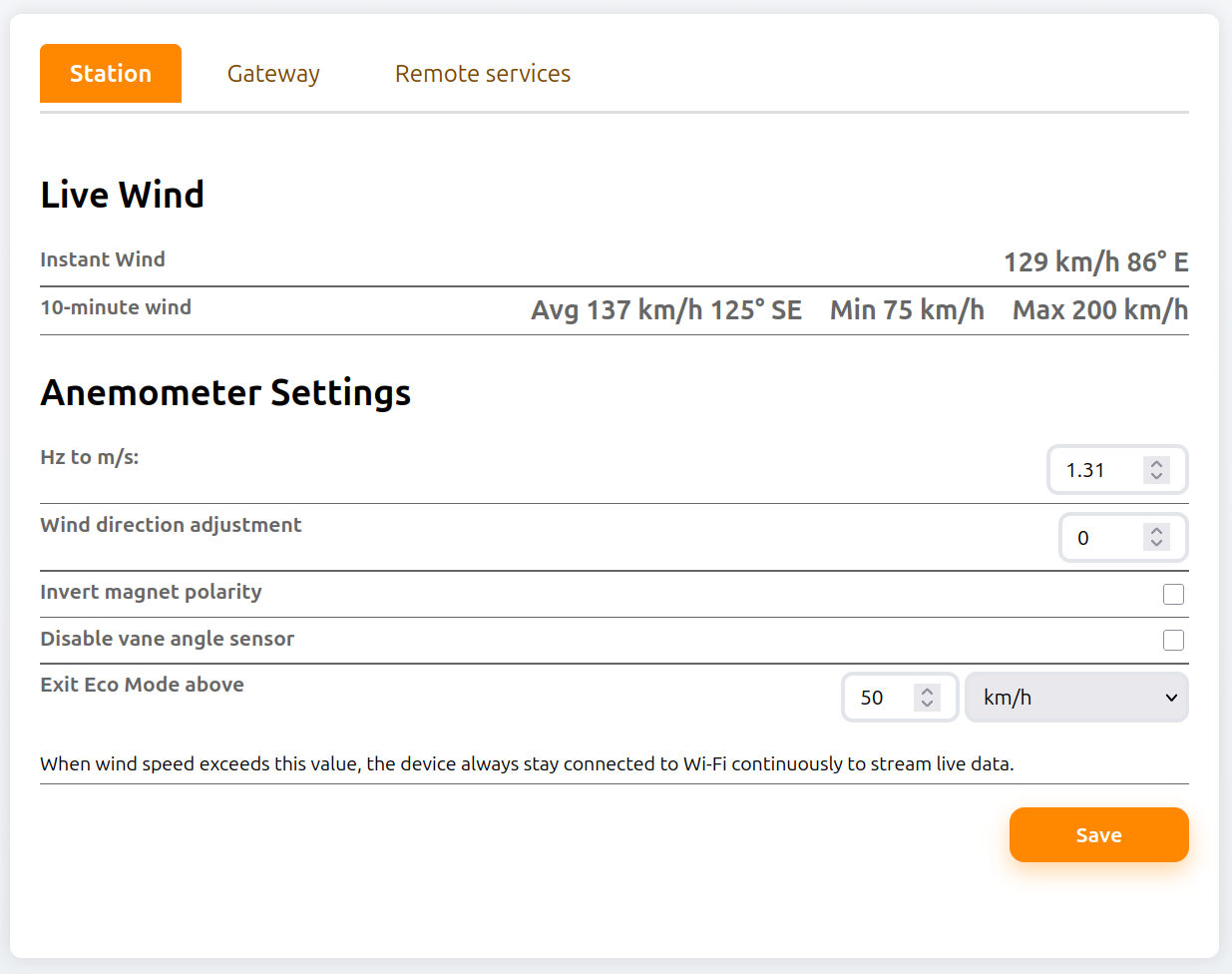
Live Wind
| Field Name | Type | Description |
|---|---|---|
| Instant Wind | Info | Current wind speed and direction measured by the sensor. |
| Wind (last 10 minutes) | Info | Average, minimum, and maximum wind speed over the last 10 minutes. Average wind direction over the same period. |
Anemometer Settings
| Field Name | Type | Description |
|---|---|---|
| Hz to m/s | Input | Conversion factor used to translate rotor frequency (Hz) into wind speed (m/s). Useful when using a modified rotor. Default: 1.31 m/s |
| Wind Direction Adjustment (°) | Input | Applies a fixed offset to correct wind direction if the anemometer is not aligned with true north. |
| Invert Magnet Polarity | Checkbox | Enable if north and south directions are reported in reverse. |
| Disable Vane Angle Sensor | Checkbox | Ignores wind direction readings. Wind speed is averaged using a scalar (1D) method and direction is omitted from reports. |
| Exit Eco Mode Above | Input | Wind speed threshold above which the device stays permanently connected to Wi-Fi for real-time data and automations (One-S only). |
| Save | Button | Apply and store the current anemometer configuration. |
Gateway Tab
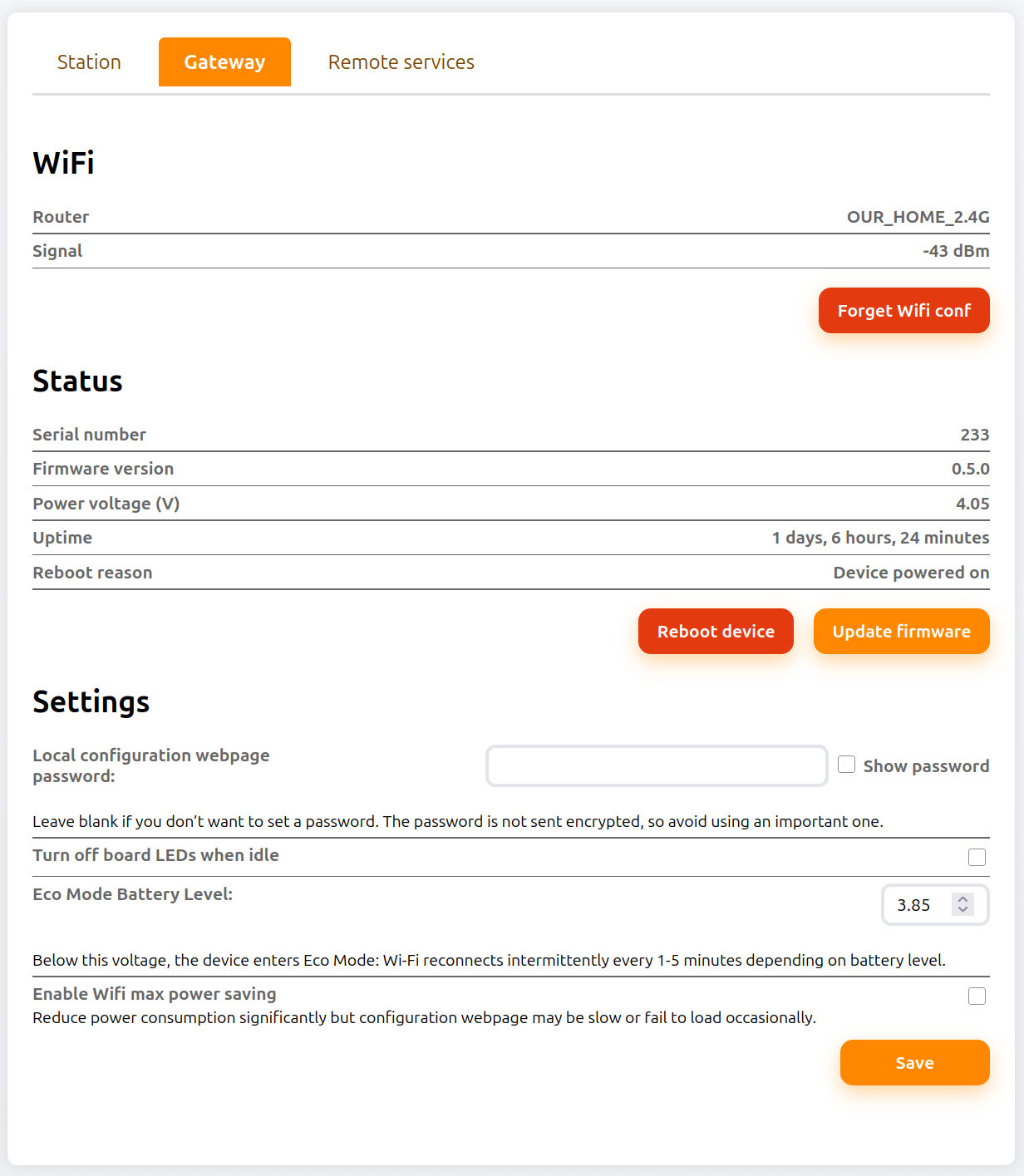
Wi-Fi Status
| Field Name | Type | Description |
|---|---|---|
| Router | Info | Name (SSID) of the connected Wi-Fi network. |
| Signal Strength | Info | Wi-Fi signal strength in dBm. Values above −80 dBm are generally acceptable. |
| Forget Wi-Fi | Button | Remove the currently saved Wi-Fi network credentials. The gateway will disconnect from the network and start as AP waiting for reconfiguration. |
Gateway Status
| Field Name | Type | Description |
|---|---|---|
| Serial Number | Info | Unique identifier assigned to the device. |
| Firmware Version | Info | Currently installed firmware version. |
| Power Voltage (V) | Info | Voltage measured at the device power input. |
| Uptime | Info | Time elapsed since the gateway was last started or rebooted. |
| Reboot Reason | Info | Reason for the most recent reboot. |
| Reboot | Button | Reboot the device immediately |
| Update Firmware | Button | Update the device to the latest firmware version. This option is displayed only when a new version is available. Note: On some earlier firmware versions, a bug may prevent successful updates after long uptimes. Reboot the device before updating to ensure success. |
Gateway Settings
| Field Name | Type | Description |
|---|---|---|
| Local Configuration Webpage Password | Input | Sets a password to restrict access to the local configuration webpage. |
| Turn off board LEDs when idle | Checkbox | When enabled, the LEDs on the electronics board automatically turn off when the device is idle. Pressing the onboard switch temporarily reactivates them for 1 minute. |
| Eco Mode Battery Level (V) (1S only) | Input | Defines the voltage level below which the device enters Eco Mode. In this mode, the permanent Wi-Fi connection is disabled, the device reconnects periodically to send data to remote services (every 1, 2, or 5 minutes depending on battery level), and instant wind measurements are not available. The device returns to normal mode when the voltage rises 0.05 V above the configured threshold. |
| Enable Wi-Fi maximum power saving | Checkbox | Minimizes power consumption by ignoring certain Wi-Fi frames. As a result, accessing the local configuration page may take several attempts, and in some environments the overall connectivity may become too unstable for reliable operation. |
| Save | Button | Apply and store the current gateway configuration. |
Remote Services Tab
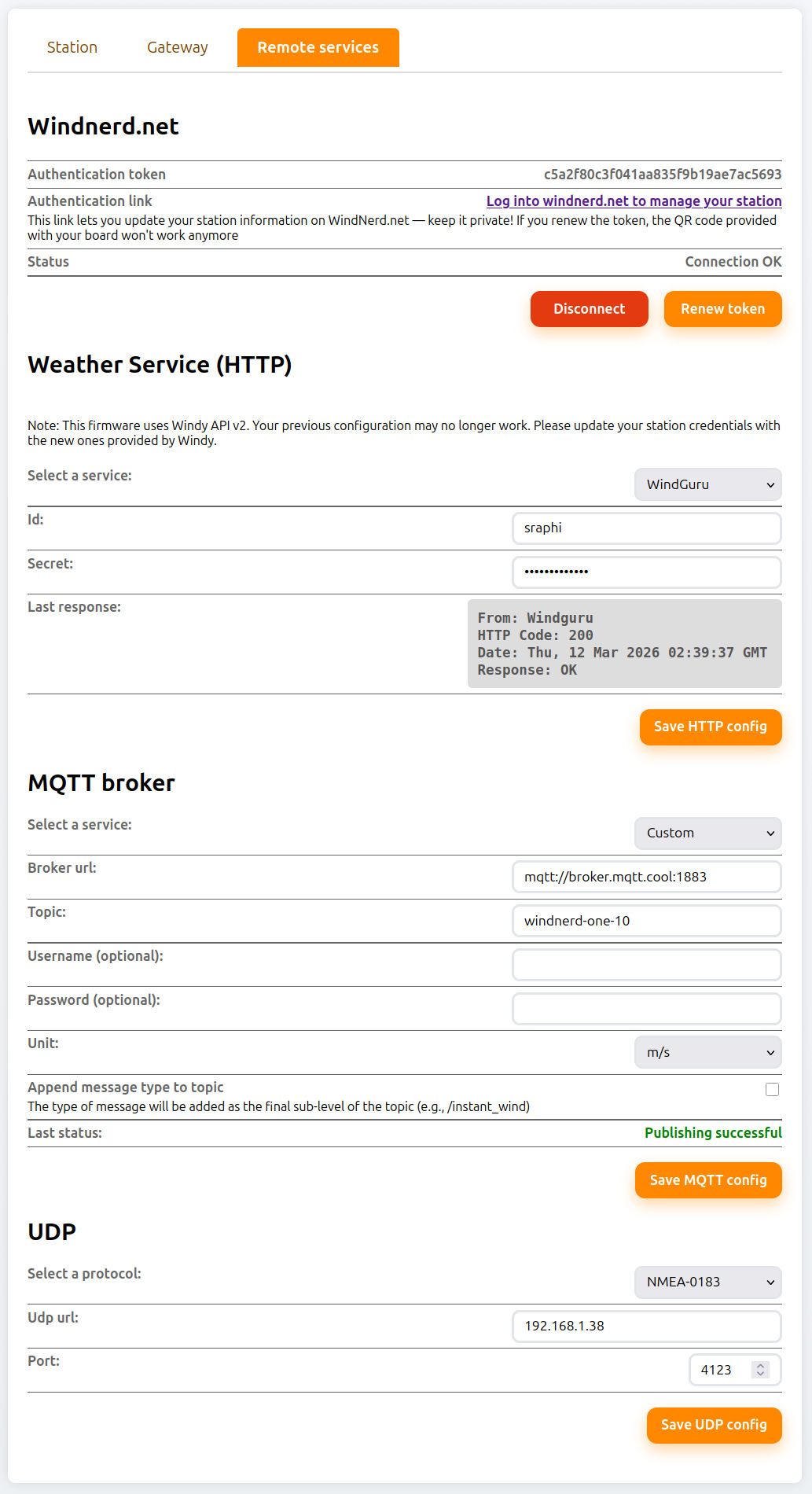
Windnerd.net
| Field Name | Type | Description |
|---|---|---|
| Authentication Token | Info | Token used to authenticate the gateway with windnerd.net. Keep this token private. Renewing the token will invalidate the QR code provided with the board. |
| Authentication Link | Link | Secure link to log into windnerd.net and manage your station information. |
| Status | Info | Current authentication and connection status with windnerd.net. |
| Disconnect | Button | Disconnect permanently the device from windnerd.net. |
| Renew Token | Button | Generate a new authentication token. This will invalidate the existing token and any associated link or QR code. |
MQTT broker
See dedicated page -> MQTT
Weather Service (HTTP)
See dedicated page -> Weather Service
UDP
The device can transmit instant wind speed and direction over UDP to another device on the network.
A message is sent every 3 seconds.
This feature allows the WindNerd One to feed wind data directly to navigation or monitoring software listening for UDP packets.
| Field Name | Type | Description |
|---|---|---|
| Protocol | Select | Protocol used to encode wind data. Currently only NMEA0183 is supported. |
| URL | Input | Address of the destination device. This can be an IPv4 address (e.g. 192.168.1.50) or a domain name if DNS or mDNS is available on the network. |
| Port | Input | UDP port on which the destination device listens for incoming packets. |
| Save UDP config | Button | Apply and store the current UDP configuration. |
UDP transmission requires a continuous network connection. For this reason, it is disabled when the WindNerd One-S operates in Eco mode.