WindNerd One(-S) Local Dashboard
The WindNerd One and One-S are no longer sold. This page is kept for existing owners. Their successor is the WindNerd HQ.
Open the local dashboard
Your WindNerd One has its own built-in local dashboard, a webpage you can open in your browser from your local network. To use it, go to http://windnerd-one-xxx.local (http://windnerd-one-s-xxx.local for a One-S), where xxx is your device's serial number. The shorter address http://wnxxx.local also works.
Some operating systems or routers may block .local addresses. If that happens, you can access the page using the device’s local IP address instead. There are a few ways to find it:
-
At the end of the initial Wi-Fi setup, the confirmation screen shows the device's addresses with a Copy button. Keep in mind, the IP address might change over time.
-
If you’re logged into windnerd.net, the station management page shows the last known local IP. It might be outdated if the network changed.
-
You can also find the IP address on your internet router’s settings page. Look for a device named windnerd-one-xxx; the IP address shown there is always up to date.
Once you have the IP address, type it into the address bar of your browser (like Chrome or Safari) to open the WindNerd’s local dashboard.

While the WindNerd One-S is in Eco mode, Wi-Fi is only on for a few seconds at a time, so the local dashboard is not accessible.
Wi-Fi connection and access to the configuration can be temporarily restored for 3 minutes by pressing the on-board button for 1 second.
Station Tab
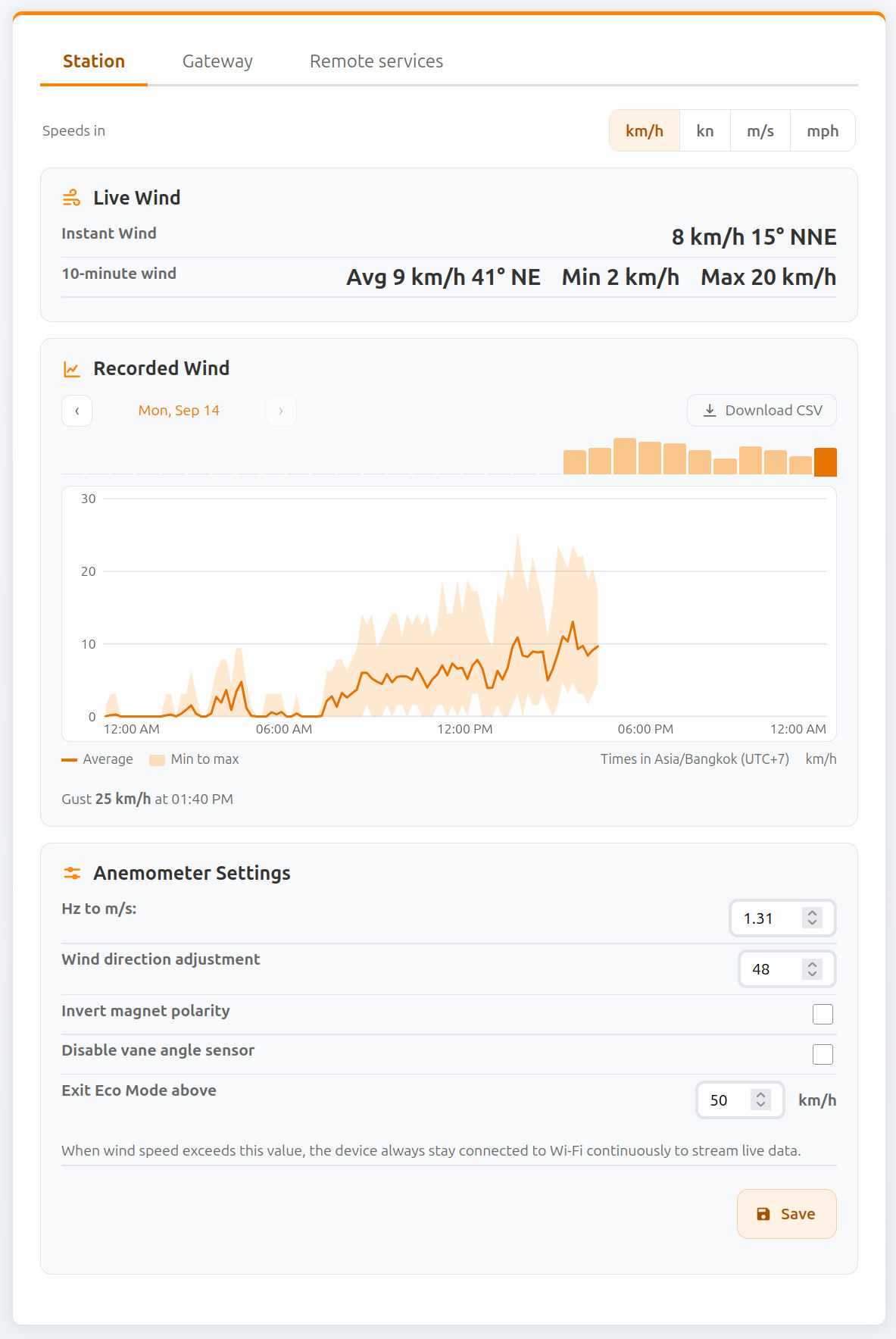
Speed Unit
| Field Name | Type | Description |
|---|---|---|
| Speeds in | Selector | Unit used to display speeds on this page: km/h, kn, m/s or mph. It applies to live wind, the recorded wind chart, the CSV download and the Exit Eco Mode above field. The choice is remembered by your browser; it does not change the units sent to MQTT or weather services. |
Live Wind
| Field Name | Type | Description |
|---|---|---|
| Instant Wind | Info | Current wind speed and direction measured by the sensor. |
| 10-minute wind | Info | Average, minimum, and maximum wind speed over the last 10 minutes. Average wind direction over the same period. |
Recorded Wind
The device keeps its own wind history: one report per minute (average, minimum, maximum and direction) stored in its flash memory, about 30 days deep. The oldest reports are overwritten as new ones arrive. The history survives reboots and power loss, and keeps being recorded while in Eco mode or when the device is offline.
| Field Name | Type | Description |
|---|---|---|
| Day chart | Chart | Wind for the selected day, in your browser's local time: 10-minute averages as a line, with the minimum to maximum range shaded. Hover or touch the chart to read values. |
| ‹ / › | Buttons | Go to the previous or next day. |
| Day selector | Buttons | Jump to one of the last 31 days. |
| Download CSV | Link | Download wind-history.csv, containing every stored 1-minute report in the selected speed unit, oldest first. Columns: local time, Unix time (UTC), scalar and vector average speed, maximum, minimum and direction. |
Reports are dated using the time received from windnerd.net or, when the device is not connected to it, from the Time server set in the Gateway tab. Minutes recorded before the device learned the time are kept, but cannot be placed on a day: they are left out of the chart and appear in the CSV with empty time columns.
A factory reset erases the recorded history.
Anemometer Settings
| Field Name | Type | Description |
|---|---|---|
| Hz to m/s | Input | Conversion factor used to translate rotor frequency (Hz) into wind speed (m/s). Useful when using a modified rotor. Default: 1.31 m/s |
| Wind Direction Adjustment (°) | Input | Applies a fixed offset to correct wind direction if the anemometer is not aligned with true north. |
| Invert Magnet Polarity | Checkbox | Enable if north and south directions are reported in reverse. |
| Disable Vane Angle Sensor | Checkbox | Ignores wind direction readings. Wind speed is averaged using a scalar (1D) method and direction is omitted from reports. |
| Exit Eco Mode Above | Input | Wind speed, in the unit selected at the top of the page, above which the device stays permanently connected to Wi-Fi for real-time data and automations (One-S only). Ignored when the Eco mode override is set to Always Eco. |
| Save | Button | Apply and store the current anemometer configuration. |
Gateway Tab
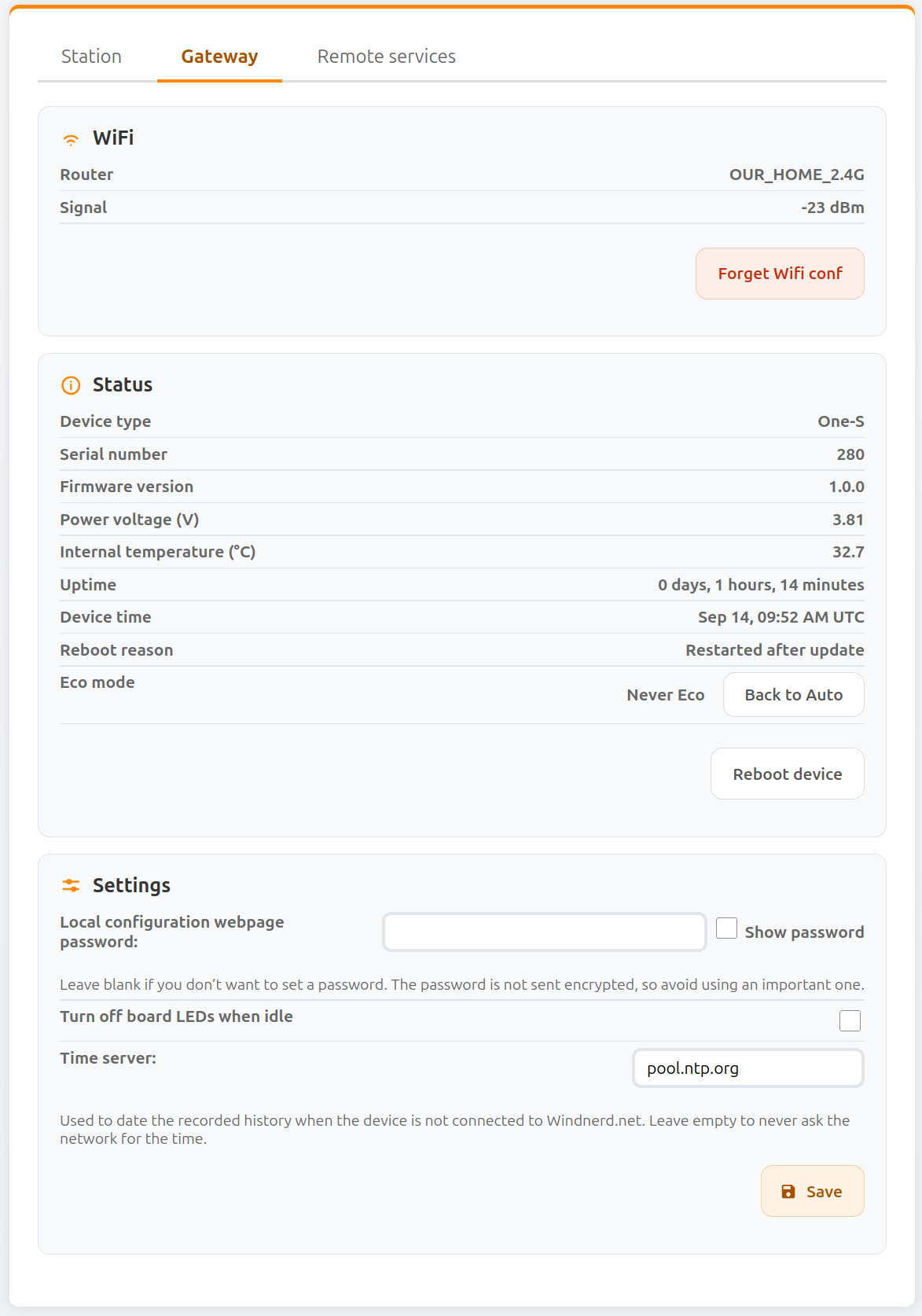
Wi-Fi
| Field Name | Type | Description |
|---|---|---|
| Router | Info | Name (SSID) of the connected Wi-Fi network. |
| Signal | Info | Wi-Fi signal strength in dBm. Values above −80 dBm are generally acceptable. |
| Forget Wi-Fi conf | Button | Remove the currently saved Wi-Fi network credentials. The gateway will disconnect from the network and start as AP waiting for reconfiguration. |
Status
| Field Name | Type | Description |
|---|---|---|
| Device Type | Info | Board model: One or One-S. |
| Serial Number | Info | Unique identifier assigned to the device. |
| Firmware Version | Info | Currently installed firmware version. |
| Power Voltage (V) | Info | Voltage measured at the device power input. |
| Internal Temperature (°C) | Info | Temperature measured inside the device from the vane sensor. |
| Uptime | Info | Time elapsed since the gateway was last started or rebooted. |
| Device Time | Info | Date and time of the device's clock, shown in your browser's time zone. Not available until the device has received the time from windnerd.net or the time server. |
| Reboot Reason | Info | Reason for the most recent reboot. |
| Eco Mode (One-S only) | Info | Current Eco mode setting: Auto, Always Eco or Never Eco. |
| Back to Auto (One-S only) | Button | Shown when Eco mode is set to Always Eco or Never Eco. Returns the device to automatic energy management. |
| Update Firmware | Button | Update the device to the latest firmware version. This option is displayed only when a new version is available. Note: On some earlier firmware versions, a bug may prevent successful updates after long uptimes. Reboot the device before updating to ensure success. |
| Reboot Device | Button | Reboot the device immediately. |
Settings
| Field Name | Type | Description |
|---|---|---|
| Local Configuration Webpage Password | Input | Sets a password to restrict access to the local dashboard. Leave blank for no password. The password is not sent encrypted, so avoid using an important one. |
| Turn off board LEDs when idle | Checkbox | When enabled, the LEDs on the electronics board automatically turn off when the device is idle. Pressing the onboard switch temporarily reactivates them for 1 minute. |
| Time Server | Input | Time server (NTP) used to set the device's clock, and so date the recorded wind, when the device is not connected to windnerd.net. Default: pool.ntp.org. Leave empty to never ask the network for the time. |
| Save | Button | Apply and store the current gateway configuration. |
| Deprecated | Defined the voltage below which the device entered Eco Mode. The One-S now decides by itself from its measured energy budget, see Eco mode. | |
| Deprecated for One-S | Minimize power consumption by ignoring certain Wi-Fi frames, at the cost of a less reliable connection. |
Eco Mode
The One-S manages its own energy: it estimates how much solar energy is available and picks the most responsive mode it can afford.
| Mode | Wi-Fi | Local dashboard and HTTP API |
|---|---|---|
| Continuous | Always connected | Available |
| Continuous with power saving | Always connected, with the deepest Wi-Fi power saving | Available, but the .local address may take a few attempts to open |
| Eco, every 1, 2 or 5 minutes | Connects briefly to publish data, then turns off | Not available |
| No radio | Off: wind is recorded but not published | Not available |
In every mode, wind is still measured and recorded every minute. MQTT and weather services receive data at each Eco cycle.
Whatever its energy budget, the device stays out of Eco mode when:
- the board was powered or resetted in the last 3 minutes.
- the on-board switch was pressed in the last 3 minutes.
- the wind is above the Exit Eco Mode above speed, set in the Station tab
- exiting from eco was triggered from windnerd.net
When the battery is too low to turn the radio on, the device stays in No radio mode. Wind is still recorded, and the missing history is uploaded to windnerd.net once power is back.
Overriding Eco mode
| Setting | Behaviour |
|---|---|
| Auto (default) | The energy budget decides, as described above. |
| Always Eco | The device always runs in Eco mode, even with a full battery. A switch press still brings Wi-Fi back temporarily, and the wind threshold is ignored. |
| Never Eco | Wi-Fi stays connected whatever the battery level, until the battery is too low to start Wi-Fi. Use with care on solar installations. |
The setting can be changed from Home Assistant. The local dashboard shows the current setting in the Status section, with a Back to Auto button.
Remote Services Tab
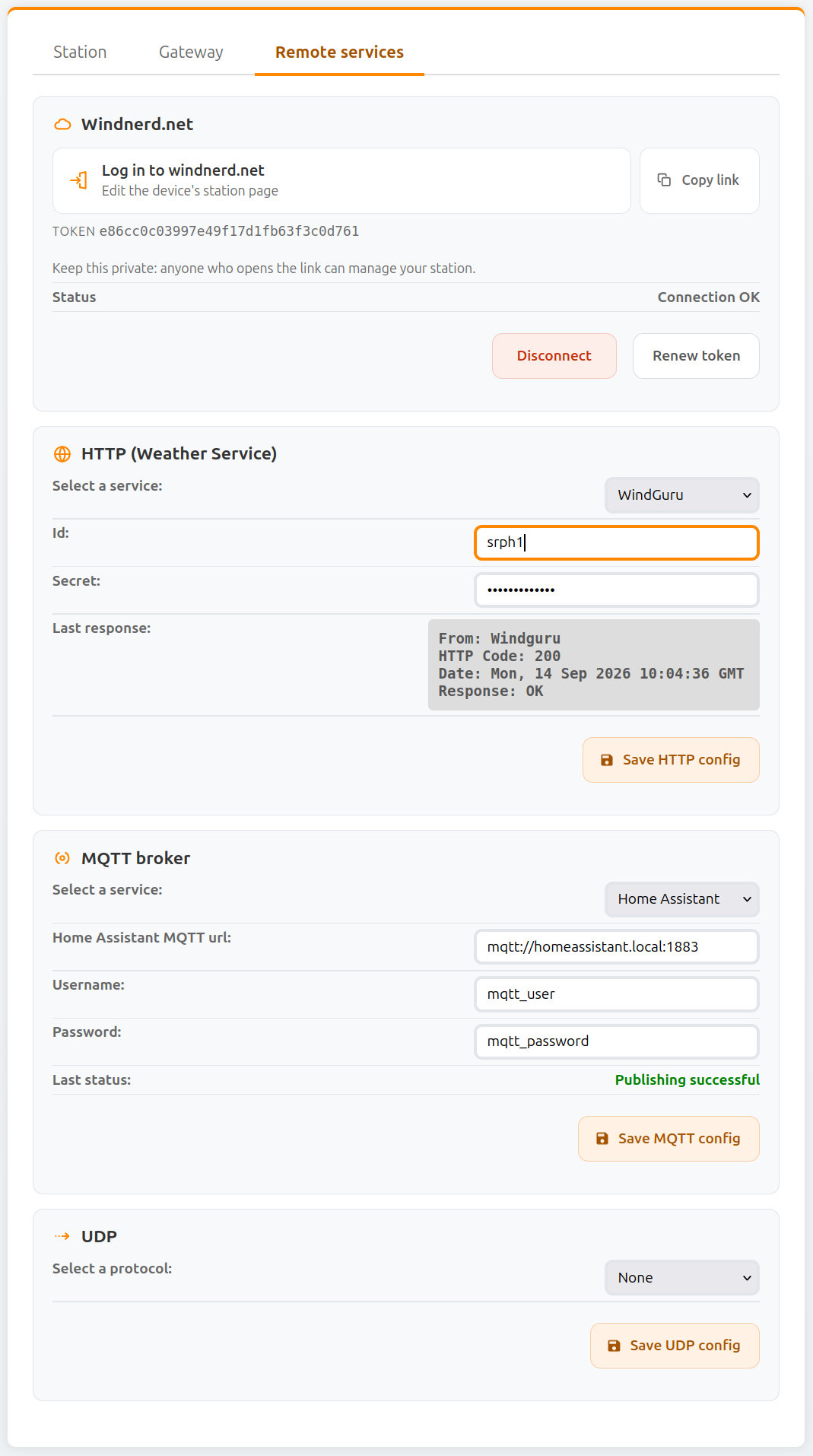
Windnerd.net
| Field Name | Type | Description |
|---|---|---|
| Log in to windnerd.net | Link | Link containing your token, used to log into windnerd.net and manage your station information. |
| Copy link | Button | Copy the login link, for example to open it on another device. |
| Token | Info | Token used to authenticate the gateway operator with windnerd.net. Keep this token private: anyone who opens the link can manage your station. Renewing the token will invalidate the QR code provided with the board. |
| Status | Info | Current authentication and connection status with windnerd.net. |
| Renew Token | Button | Generate a new authentication token. This will invalidate the existing token and any associated link or QR code. |
| Disconnect | Button | Permanently disconnect the device from windnerd.net. |
| Reconnect | Button | Shown after disconnecting. Reconnects the device to windnerd.net. |
When the connection to windnerd.net comes back after an outage, the device uploads the 1-minute reports recorded in the meantime, so the station history on windnerd.net has no gap.
MQTT broker
See dedicated page -> MQTT
Weather Service (HTTP)
See dedicated page -> Weather Service
UDP
The device can transmit instant wind speed and direction over UDP to another device on the network.
A message is sent every 3 seconds.
This feature allows the WindNerd One to feed wind data directly to navigation or monitoring software listening for UDP packets.
| Field Name | Type | Description |
|---|---|---|
| Protocol | Select | Protocol used to encode wind data. Currently only NMEA0183 is supported. |
| URL | Input | Address of the destination device. This can be an IPv4 address (e.g. 192.168.1.50) or a domain name if DNS or mDNS is available on the network. |
| Port | Input | UDP port on which the destination device listens for incoming packets. |
| Save UDP config | Button | Apply and store the current UDP configuration. |
UDP transmission requires a continuous network connection. For this reason, it is disabled when the WindNerd One-S operates in Eco mode.